
Which Servers Need a Reboot? Tracking Stale Kernels and Libraries on Linux
Installing a patch does not mean you are running it. Learn how to find Linux servers still running old kernels, services holding deleted libraries and hosts waiting for a reboot, then restart them safely and keep patch status visible.
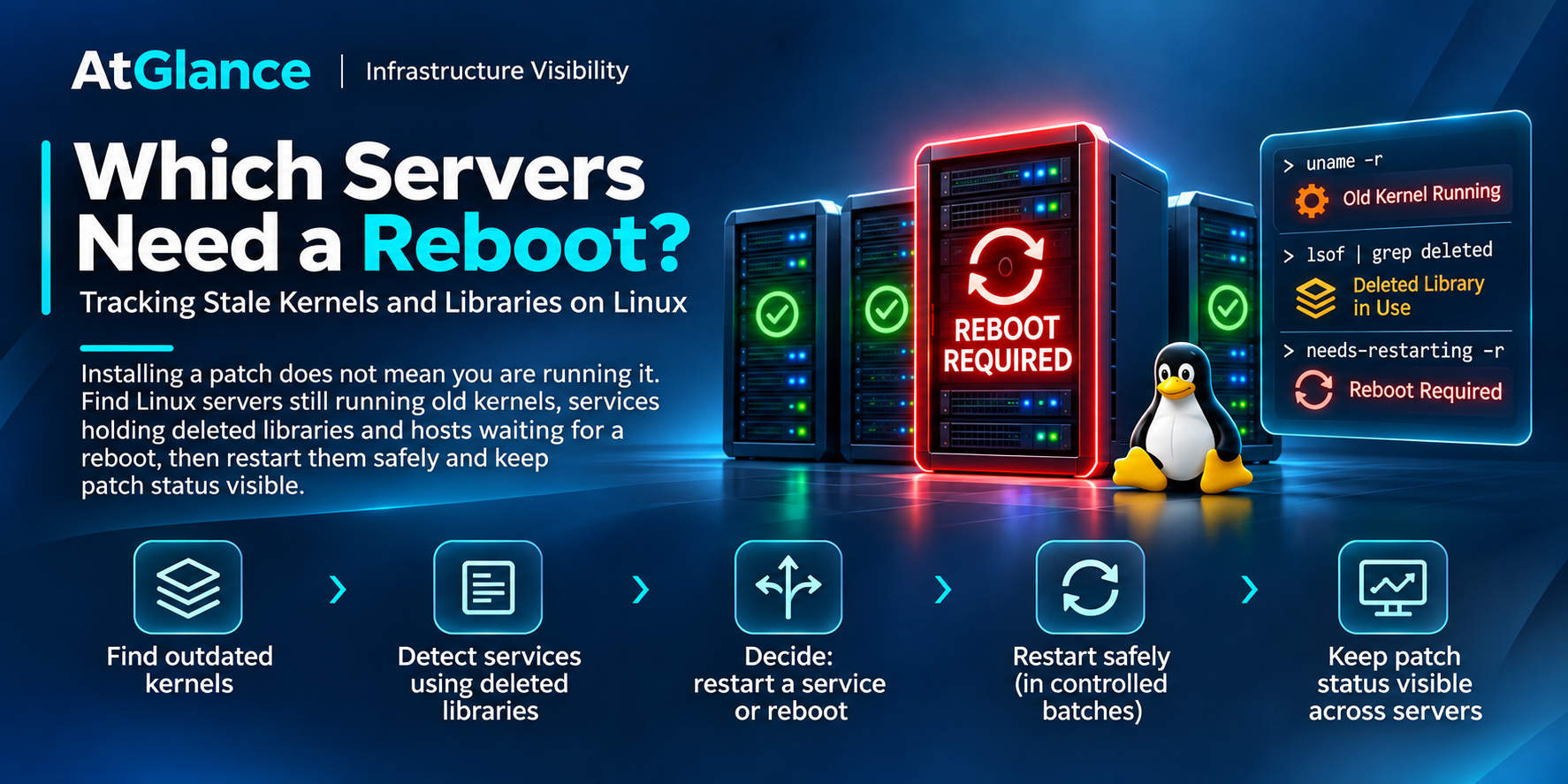
Which Servers Need a Reboot? Tracking Stale Kernels and Libraries on Linux
Patching dashboards often show a reassuring picture: updates installed, packages current, job done. But installing an update and running the updated code are two different things. A new kernel does nothing until the host boots into it. A patched shared library does nothing for a process that loaded the old version into memory weeks ago.
This gap is easy to miss. The package manager reports the fixed version, vulnerability scanners that only check installed packages may mark the host as clean, and meanwhile the vulnerable code is still running.
This guide shows how to find Linux servers that are running stale kernels or libraries, decide whether they need a full reboot or only a service restart, and handle restarts safely. The detection commands are read-only. Restart steps come with warnings, because they interrupt running workloads.
Why Installed Is Not the Same as Running
Three situations leave old code running after an update:
- Kernel updates. The new kernel is installed next to the old one, but the running kernel only changes after a reboot.
- Shared library updates. When a library such as the C library or a TLS library is updated, the old file is replaced on disk. Processes that already loaded it keep using the old copy in memory until they restart.
- Long-running services. Daemons, databases and language runtimes can run for months. They keep their original code and libraries for as long as they run.
The security impact is direct: if the update fixed a vulnerability, the host stays exposed until the right component restarts.
Step 1: Compare the Running Kernel with the Installed Kernel
Start with the kernel. These commands are read-only.
# Running kernel
uname -r

# When the host last booted
uptime -s
Then list installed kernels.
On RHEL, Fedora and related distributions:
# Installed kernel packages, most recently installed first
rpm -q kernel --last | head -n 3
On Debian and Ubuntu:
# Installed kernel images
ls -1 /boot/vmlinuz-*
If the newest installed kernel is not the one uname -r reports, the host needs a reboot to run it. Be aware that the newest installed kernel is not always the one the bootloader will pick. On RHEL-family systems, sudo grubby --default-kernel shows the configured default without changing it.
Step 2: Use the Distribution's Reboot Indicators
Most distributions provide their own way to report that a reboot or restart is needed.
Debian and Ubuntu
On many Debian and Ubuntu systems, package scripts create a marker file when an update needs a reboot:
# Present only when a reboot is recommended
ls -l /var/run/reboot-required 2>/dev/null

# Packages that triggered it
cat /var/run/reboot-required.pkgs 2>/dev/null
This file depends on helper packages being installed, so its absence is not proof that no reboot is needed. Use it together with the other checks in this guide.
The needrestart tool, available in Debian and Ubuntu repositories, goes further and checks running processes for outdated libraries. To list what it finds without restarting anything:
sudo needrestart -r l
The -r l option means list only. In some configurations needrestart can restart services automatically or interactively, so use list mode when you only want a report.
RHEL, Fedora and Related Distributions
The needs-restarting command, provided through dnf plugins, reports on reboots and services:
# Reports whether a full reboot is required
sudo dnf needs-restarting -r

# Lists systemd services that should be restarted
sudo dnf needs-restarting -s
With -r, the command exits with status 1 when a reboot is needed and 0 when it is not, which makes it easy to use in scripts. Both commands only report; they do not restart anything. If the command is not found, install the dnf plugins package for your distribution.
Step 3: Find Processes Holding Deleted Libraries
When a library is replaced on disk, processes using the old version still have it mapped in memory, and the kernel marks the mapping as deleted. You can find these processes yourself, which works on any distribution:
for maps in /proc/[0-9]*/maps; do
  pid=${maps#/proc/}; pid=${pid%/maps}
  if sudo grep -qE '\.so[^ ]* \(deleted\)' "$maps" 2>/dev/null; then
    printf '%s\t%s\n' "$pid" "$(cat /proc/$pid/comm 2>/dev/null)"
  fi
done | sort -u -k2
This loop reads each process's memory map and prints the PID and name of any process that still uses a deleted shared library. It only reads files under /proc and changes nothing.
To see exactly which libraries a specific process is holding:
sudo grep '(deleted)' /proc/1234/maps | awk '{print $6}' | sort -u
Some results are harmless. Applications that use temporary or shared memory files may show deleted mappings that are not libraries, which is why the first loop filters for .so files. Focus on processes holding old copies of security-relevant libraries such as the C library, OpenSSL or other TLS and crypto libraries.
Step 4: Decide Between a Service Restart and a Reboot
Not every update needs a full reboot. Use the findings to pick the smallest action that actually loads the fixed code:
| Finding | Action needed |
|---|---|
| Newer kernel installed than running | Reboot |
| Distribution reports a reboot is required | Reboot, after checking which package triggered it |
| Individual services hold deleted libraries | Restart those services |
| Core libraries used by PID 1 or many processes are outdated | Reboot is usually simpler and safer |
| Container hosts with outdated libraries in containers | Rebuild and redeploy the container images |
The last row is important. Updating packages on a container host does not update the libraries inside container images. Those containers need new images built from patched base images, then redeployed.
Kernel live patching services can apply some kernel fixes without a reboot. They reduce how often you need to reboot for kernel vulnerabilities, but they do not cover every kernel change and they do nothing for user-space libraries or services. Treat live patching as a way to buy time, not a replacement for regular reboots.
Step 5: Restart Safely
Restarts interrupt workloads. Plan them like any other production change.
Restarting Individual Services
Warning: restarting a service drops its active connections and may cause brief errors for clients. For services behind a load balancer, remove the host from rotation first.
sudo systemctl restart nginx.service
systemctl status nginx.service
After restarting, run the library check from Step 3 again to confirm the process no longer holds deleted libraries.
Rebooting Hosts
Warning: a reboot stops every workload on the host. Before rebooting:
- Check that the host is not the only instance of a critical service.
- Drain traffic or move workloads elsewhere first.
- Confirm you have out-of-band or console access in case the host does not come back cleanly.
- Reboot in small batches, never the whole fleet at once, and confirm each batch is healthy before continuing.
For Kubernetes worker nodes, cordon and drain the node so pods are rescheduled before the reboot:
kubectl cordon node-1
kubectl drain node-1 --ignore-daemonsets --delete-emptydir-data
Warning: --delete-emptydir-data permanently removes data in emptyDir volumes on that node. Make sure no workload depends on that data surviving. Drains also respect PodDisruptionBudgets, so a drain that hangs usually means a budget would be violated; investigate rather than forcing it. After the node is back and healthy, run kubectl uncordon node-1.
Community tools such as kured can automate this process in Kubernetes, rebooting nodes one at a time when a reboot marker is present. Review how any such tool decides when to reboot before enabling it in production.
Step 6: Report Status Across the Fleet
Checking hosts one by one does not scale. This read-only script prints a one-line status per host that you can collect through your configuration management or remote execution tool:
#!/usr/bin/env bash
# Read-only reboot status report.
host=$(hostname)
kernel=$(uname -r)
booted=$(uptime -s)
status=ok

if [ -f /var/run/reboot-required ]; then
  status=reboot-required
fi

if command -v dnf >/dev/null 2>&1; then
  dnf -q needs-restarting -r >/dev/null 2>&1
  if [ $? -eq 1 ]; then
    status=reboot-required
  fi
fi

printf '%s\t%s\t%s\t%s\n' "$host" "$kernel" "$booted" "$status"
The script checks the exit code exactly, because other non-zero codes mean the command itself failed rather than that a reboot is needed. Combine its output with the library check from Step 3 for a fuller picture.
Once you collect this data regularly, useful questions become easy to answer: which hosts have not rebooted since the last kernel update, which run the oldest kernels, and which have been waiting for a reboot the longest. Seeing the actual running state of hosts, not just what is installed, is the kind of infrastructure visibility AtGlance is built around. Whatever tool you use, report running state alongside installed packages.
Security Considerations
- Measure exposure by running code. A host with a patched package and an unpatched running process is still vulnerable.
- Set a reboot policy. Define how quickly hosts must run patched kernels and libraries after an update, with shorter windows for internet-facing systems.
- Watch for hosts with very long uptimes. Long uptime is not a goal in itself, and it often means a host has missed several kernel updates.
- Test patched images and hosts before broad rollout to avoid turning a security fix into an outage.
Conclusion
Patching is only finished when the patched code is running. Compare running kernels with installed ones, use your distribution's reboot indicators, and look for processes still holding deleted libraries. Restart individual services when that is enough, reboot when it is not, and do both in controlled batches with traffic drained first. Collect running state across your fleet regularly, and the question of which servers need a reboot gets a clear answer instead of a guess.