
Centralized Server Configuration Management with AtGlance
AtGlance pairs a self-hosted web Console with a CLI on each Linux server. Learn what each one does, how they connect and how to register your first server.
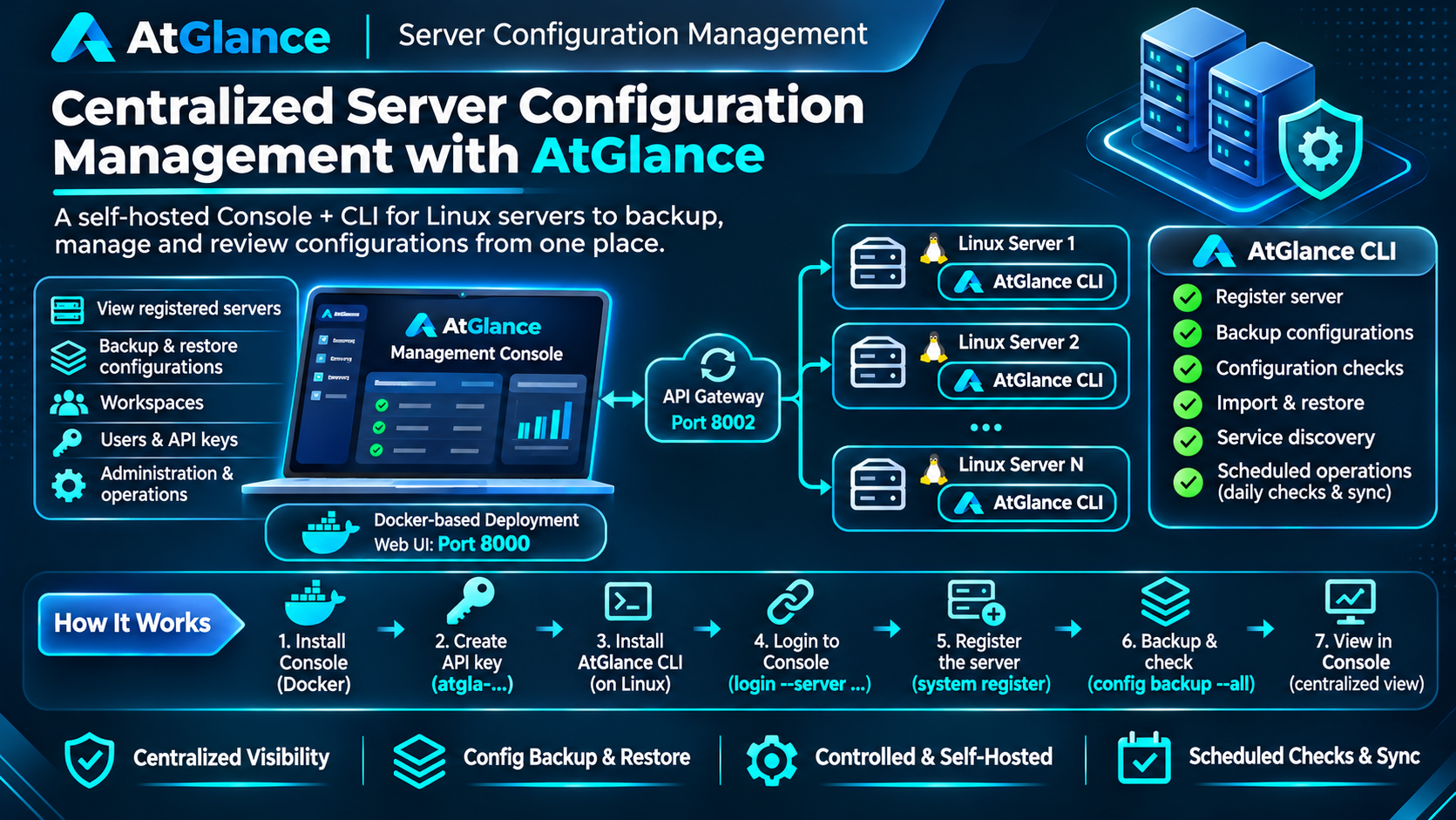
Centralized Server Configuration Management with AtGlance
Introduction
Most teams start with a few servers and a few config files. Over time, the number grows, and each server collects its own small changes. When a problem appears, someone has to log in to several machines and compare files by hand.
Centralized server configuration management fixes this by giving you one place to see your servers and their configurations. AtGlance is built for that job.
What is AtGlance?
AtGlance is a self-hosted server configuration management and infrastructure visibility platform. Self-hosted means you run it on your own infrastructure instead of using an outside service.
It has two main interfaces. The Management Console is a web application for your team. The AtGlance CLI is a command-line tool that runs on each Linux server.
Management Console: One place to view your servers
The Management Console is installed with a Docker-based deployment, and its web interface uses port 8000. It gives you a centralized view of every registered system.
From the Console, you can:
- See registered systems with their server and service information.
- Work with configuration backups and restore them.
- Organize work into workspaces.
- Manage users and API keys.
- Use administration and operational features.
This is where infrastructure visibility comes from: one screen instead of many separate SSH sessions.
AtGlance CLI: Manage servers from the terminal
The AtGlance CLI is a server management CLI installed on individual Linux servers. It connects a server to the Console and does the work on that server: registration and other lifecycle operations, configuration backups and checks, configuration import and restore workflows, and service discovery.
The CLI talks to the Console through its API gateway on port 8002. Connecting and registering a server looks like this:
sudo atglance login --server http://<console-host>:8002
sudo atglance system register
How Console and CLI work together
A typical setup follows these steps:
- Install the Console using the Docker-based deployment.
- Create an API key in the Console. The key starts with
atgla-. - Install the AtGlance CLI on a Linux server.
- Connect the CLI to the Console with
sudo atglance login --server http://<console-host>:8002. - Register the server with
sudo atglance system register. - Back up configurations and check connectivity:
sudo atglance config backup --all
sudo atglance check
- Open the Console to view the registered system.
For regular checks without manual steps, you can optionally enable scheduled operation:
sudo atglance schedule enable
This runs daily checks and sync using a service account key. It is scheduled server configuration monitoring, not real-time monitoring.
Practical use cases
These scenarios are examples of typical usage.
Example: Managing configurations across multiple servers. Each server is registered with the CLI, so the team reviews all of them from the Console instead of logging in one by one.
Example: Backing up before a change. Before updating a service, an engineer runs sudo atglance config backup --all to keep a Linux configuration backup of the current state.
Example: Reviewing information centrally. During troubleshooting, the team checks server and service information for registered systems in the Console.
Example: Restoring after a problem. A configuration change breaks a service, so the team uses the restore workflow to return to the backed-up configuration.
Conclusion
The Console gives you a central view and administration, and the CLI handles the work on each Linux server. Together, they make centralized configuration management practical for teams that want self-hosted server management.
To get started, read the documentation at https://atglance.live/docs and download AtGlance from https://atglance.live/downloads.
Frequently Asked Questions
What is AtGlance used for? AtGlance is used for self-hosted server configuration management and infrastructure visibility. You can register Linux servers, back up and restore their configurations, and review server and service information in one Console.
What is the difference between the Console and CLI? The Console is a web application for central visibility and administration. The CLI runs on each Linux server, connects it to the Console and performs tasks such as registration, backups and checks.
Can AtGlance be self-hosted? Yes. The Management Console is self-hosted and uses a Docker-based deployment, so it can run within your organization's own infrastructure.
#AtGlance #DevOps #Linux #SysAdmin #ServerManagement #Infrastructure #SelfHosted