
Finding and Removing Secrets Baked Into Docker Images
Deleting a secret in a later Dockerfile step does not remove it from the image. Learn how credentials end up in image layers, history and metadata, how to scan images for them safely, and how to build with BuildKit secrets so they never land there.
Finding and Removing Secrets Baked Into Docker Images
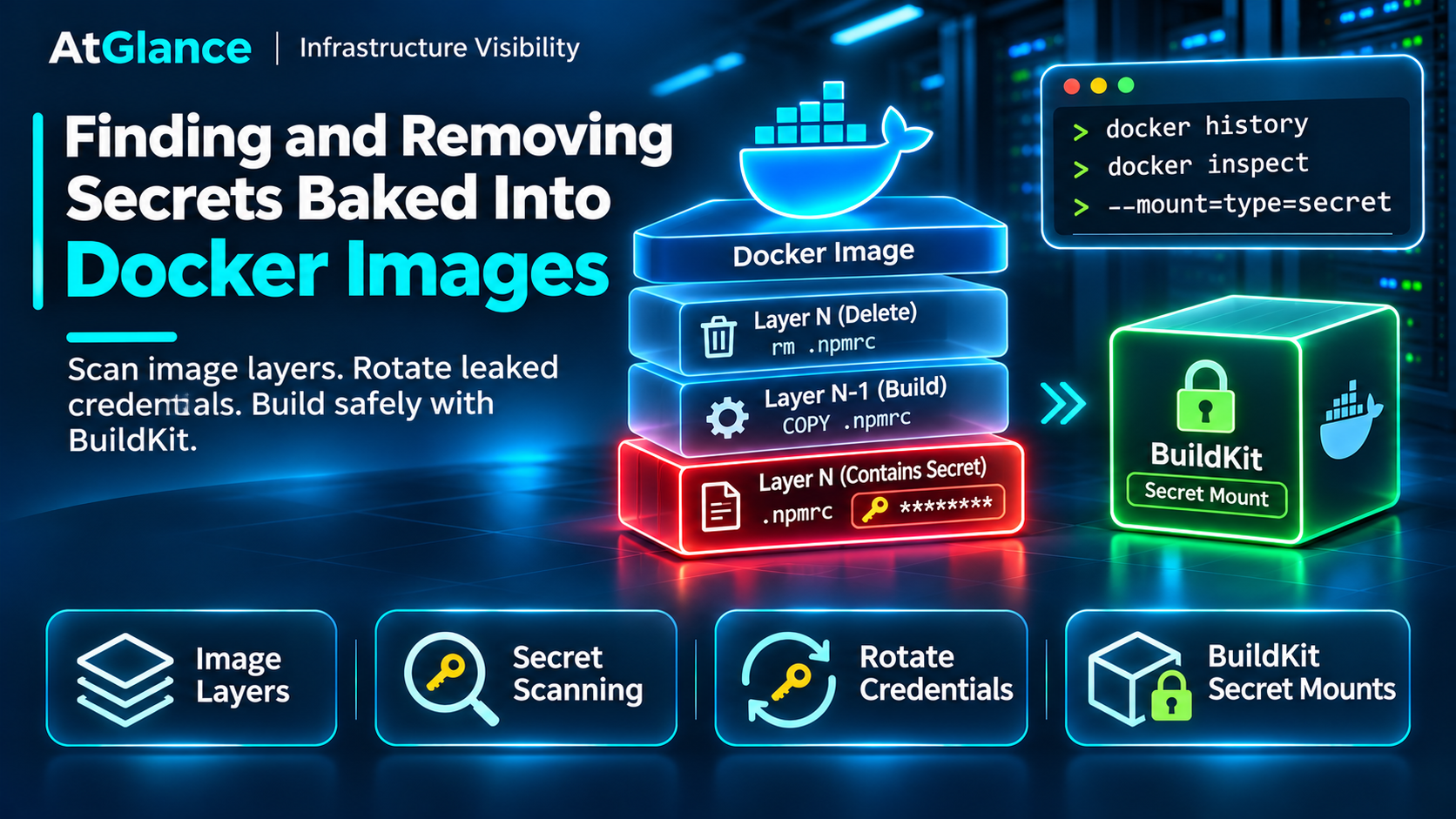
A developer needs a private package registry token to build an image, so the Dockerfile copies in an .npmrc file, installs dependencies and then deletes the file in a later step. The build works, the final container has no .npmrc in it, and the image is pushed to the registry.
The token is still in the image.
Docker images are made of layers, and each layer records the filesystem changes from one build step. Deleting a file in a later layer hides it from the running container, but the earlier layer that added it is still part of the image. Anyone who can pull the image can extract that layer and read the file.
This guide explains how secrets end up in images, how to check images you already have, and how to build images so secrets never reach a layer in the first place. It also covers what to do when you find one, which matters more than the cleanup itself.
How Secrets End Up in Images
The most common paths are:
- Copying files that contain credentials.
COPY . .picks up.envfiles, cloud credential files, SSH keys or a.gitdirectory unless they are excluded. - Adding and then deleting a file. As described above, the deletion only hides the file in later layers.
- Environment variables.
ENV API_KEY=...stores the value in the image configuration, where anyone can read it withdocker inspect. - Build arguments. Values passed with
--build-argand used during the build can appear in the image history or metadata, depending on how they are used and which builder you run. - Commands that embed credentials. A step like
RUN git clone https://user:token@git.example.internal/repo.gitcan leave the token in the image history, and sometimes in files written by the tool, such as Git configuration. - Tool caches and configuration. Package managers and CLIs may write tokens to configuration files in the home directory during a build.
Step 1: Check Image Configuration and History
Start with the cheapest checks. They are read-only and only inspect metadata of an image you have pulled locally.
# Environment variables stored in the image configuration
docker inspect --format '{{range .Config.Env}}{{println .}}{{end}}' myapp:1.4.0

# Labels, which sometimes carry build metadata
docker inspect --format '{{json .Config.Labels}}' myapp:1.4.0

# The commands that created each layer
docker history --no-trunc myapp:1.4.0
Look for variable names such as TOKEN, SECRET, PASSWORD or KEY with real values, and for history entries that contain credentials in URLs or command arguments.
Security note: this output can contain live credentials. Do not paste it into tickets or chat without redacting it first.
Step 2: Inspect Every Layer, Not Just the Final Filesystem
A common mistake is to check only the final filesystem, for example with docker run and ls, or with docker export. Both show the merged result, so they miss files that were added in one layer and deleted in a later one. To find those, look at each layer individually.
docker save writes the image, including every layer, to a tar archive. Treat the extracted content as untrusted data and keep it in its own empty directory:
mkdir -p /tmp/imgscan/layers
docker save myapp:1.4.0 -o /tmp/imgscan/image.tar
tar -xf /tmp/imgscan/image.tar -C /tmp/imgscan/layers
These commands only read the image and write files under /tmp/imgscan. The archive layout depends on your Docker version: newer versions use an OCI layout with layers stored as blobs, older ones use one directory per layer. The following loop works with both, because it tries to list every file as a tar archive and skips the ones that are not:
find /tmp/imgscan/layers -type f | while read -r f; do
  tar -tf "$f" 2>/dev/null | sed "s|^|$(basename "$f"): |"
done | grep -Ei '(\.env$|\.npmrc$|\.pypirc$|id_rsa|id_ed25519|\.pem$|\.key$|credentials|\.git/config$|\.docker/config\.json$)'
Each result shows the layer and the path of a suspicious file. A file listed with a .wh. prefix is a whiteout marker, meaning a later layer deleted it; the original file is still present in the earlier layer.
For a broader search, dedicated secret scanners such as gitleaks or trufflehog can scan extracted filesystems or images for known credential patterns. Layer explorers such as dive show what each layer adds and removes. Evaluate any third-party tool before running it on sensitive images.
When you are done, remove the working directory. Check the path before deleting, since it contains the extracted image content:
rm -rf /tmp/imgscan
Step 3: If You Find a Secret, Rotate It First
This is the most important step, and it is the one most often skipped. Once a secret has been in a pushed image, assume it is compromised. Rebuilding the image without the secret does not undo the exposure:
- The old image may already have been pulled by CI runners, developer laptops, cluster nodes and caches.
- Registries may keep image data reachable by digest even after a tag is deleted or moved.
- Mirrors and backups may hold copies.
The correct order is:
- Revoke or rotate the credential at its source, such as the package registry, cloud provider or Git host.
- Check for misuse. Review access logs for that credential during the period it was exposed.
- Rebuild the image using one of the safe patterns below.
- Remove the old image from your registry, following its documentation for deleting manifests and running garbage collection.
Warning: deleting images from a registry is permanent, and other workloads may still reference the old tag or digest. Confirm nothing in production depends on it before removing it, and remember that deletion is cleanup, not remediation. Rotation is the remediation.
Step 4: Build with BuildKit Secret Mounts
BuildKit, the default builder in current Docker releases, can make a secret available to a single RUN step without writing it into any layer. The secret is mounted temporarily while the step runs and is not included in the image.
In the Dockerfile:
# syntax=docker/dockerfile:1
FROM node:lts-slim AS build
WORKDIR /app
COPY package.json package-lock.json ./
RUN --mount=type=secret,id=npmrc,target=/root/.npmrc \
    npm ci
COPY . .
RUN npm run build
At build time, pass the secret from a file on the build machine:
docker build --secret id=npmrc,src=$HOME/.npmrc -t myapp:1.4.1 .
The .npmrc file exists inside the build container only while npm ci runs. It is not part of any layer, does not appear in docker history and is not stored in the image configuration. The same pattern works for other tools: mount the credential file to the path the tool expects.
In CI, write the secret from your CI system's secret store to a temporary file, pass it with --secret and remove the file after the build. Most CI platforms also mask secret values in logs.
SSH Access During Builds
For steps that need SSH, such as cloning a private repository, use an SSH mount instead of copying a key into the image:
RUN --mount=type=ssh git clone git@git.example.internal:team/lib.git /src/lib
docker build --ssh default -t myapp:1.4.1 .
This forwards your local SSH agent to that build step only. The private key never enters the build context or the image. You may also need to provide known host keys for the Git server so the clone can verify it.
Step 5: Keep Secrets Out of the Build Context
Many leaks start with COPY . .. A .dockerignore file controls what is sent to the builder in the first place:
.git
.env
.env.*
*.pem
*.key
.npmrc
.pypirc
.aws
.ssh
node_modules
Files listed here are never sent to the builder, so they cannot be copied into a layer by accident. Prefer copying specific files and directories over copying the entire context.
Multi-Stage Builds Help, With Limits
In a multi-stage build, only what you copy into the final stage ends up in the final image. That keeps build tools and intermediate files out of what you ship. But a secret written to a layer in an earlier stage still exists in the builder's local cache, and anyone who builds or pushes that earlier stage as its own target will include it. Use secret mounts even in build stages, rather than relying on multi-stage builds alone.
Runtime Secrets Belong at Runtime
Credentials that the application needs while running, such as database passwords, should not be in the image at all. Provide them when the container starts: as files mounted from your orchestrator's secret mechanism, from a secrets manager at startup, or, if nothing better is available, as environment variables set at runtime rather than with ENV in the Dockerfile.
Step 6: Catch Leaks Before They Are Pushed
Prevention works best in the pipeline:
- Scan the repository for secrets on every commit, so credentials never reach a Dockerfile or build context.
- Scan built images before pushing them, including all layers, and fail the build when a secret is detected.
- Lint Dockerfiles for risky patterns such as
ENVvalues that look like credentials orARGnames likeTOKENandPASSWORD. - Restrict registry access. Treat private images as sensitive artifacts. Anyone who can pull an image can read every layer.
Security Considerations
- Rotation beats deletion. A leaked secret stays leaked. Always rotate before cleaning up.
- Use short-lived credentials for builds. Tokens scoped only to reading packages, and valid for a short time, limit the damage if one leaks.
- Handle scan output carefully. Reports from secret scanners contain the secrets they found. Store them with appropriate access controls.
- Review base images too. Third-party base images can contain leftover credentials or configuration. Scan them the same way.
Keeping Image Hygiene Visible
Secrets in images are a configuration problem as much as a code problem: they come from build settings, ignore files and CI configuration that differ between repositories and teams. Knowing which images run where, and which were built with which pipeline, makes it much faster to find every affected workload when a leak is discovered. That kind of infrastructure visibility is the area AtGlance focuses on; the scanning and build practices in this guide work with any tooling.
Conclusion
Image layers remember everything, including files you deleted in a later step. Check existing images by inspecting their configuration, history and every individual layer, not just the final filesystem. If you find a secret, rotate it before doing anything else. Then fix the build: use BuildKit secret and SSH mounts, keep credentials out of the build context with .dockerignore, provide runtime secrets at runtime, and scan images in CI before they are pushed. Built this way, your images contain your application and nothing you would not want to share.